How do I invite my team and choose their roles?
KB-006 | Applies to: All plans | Last reviewed: November 18, 2026 | Version 1.2
If you want to bring a co-owner, your office manager, or your IT provider into AffirmReady, this article explains how to invite them and which role to give them.
The three roles
- Owner: everything, including the team and billing. Only an Owner can invite or remove people, change roles, manage the plan, and export your company's data.
- Editor: does the readiness work, such as answering the self-assessment, adding notes, and updating the evidence register and policies.
- Read-only: can look, cannot change. A good fit for leadership or your senior official who signs the SPRS affirmation and wants to review progress.
Invite someone
- Select Team in the menu.
- Under Invite someone, enter the person's address in Their work email and choose a Role. Editor is selected unless you pick another role.
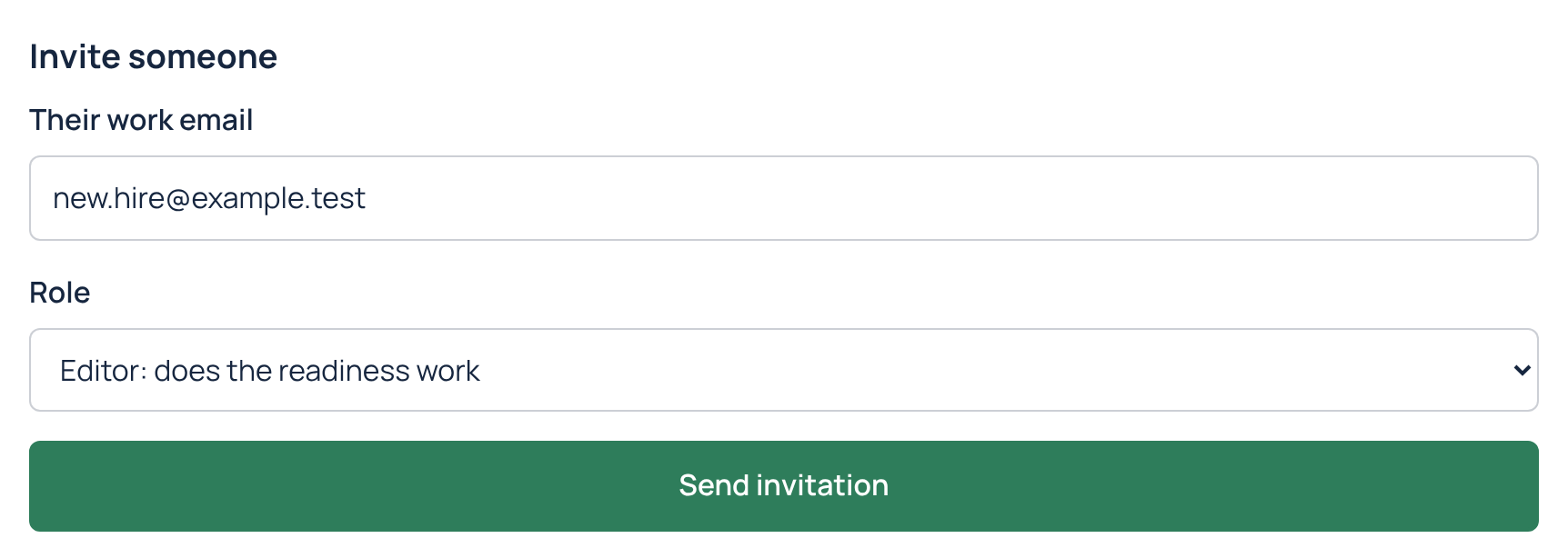
- Click Send invitation. They get an email from AffirmReady with an Accept invitation button.
- They create their own password and set up an authenticator app. See KB-052.
Invitations expire after 7 days. You'll find open invitations under Invitations on the Team page. Click Resend to send a fresh link (the old link stops working), or Revoke to cancel an invitation.

Change a role or remove someone
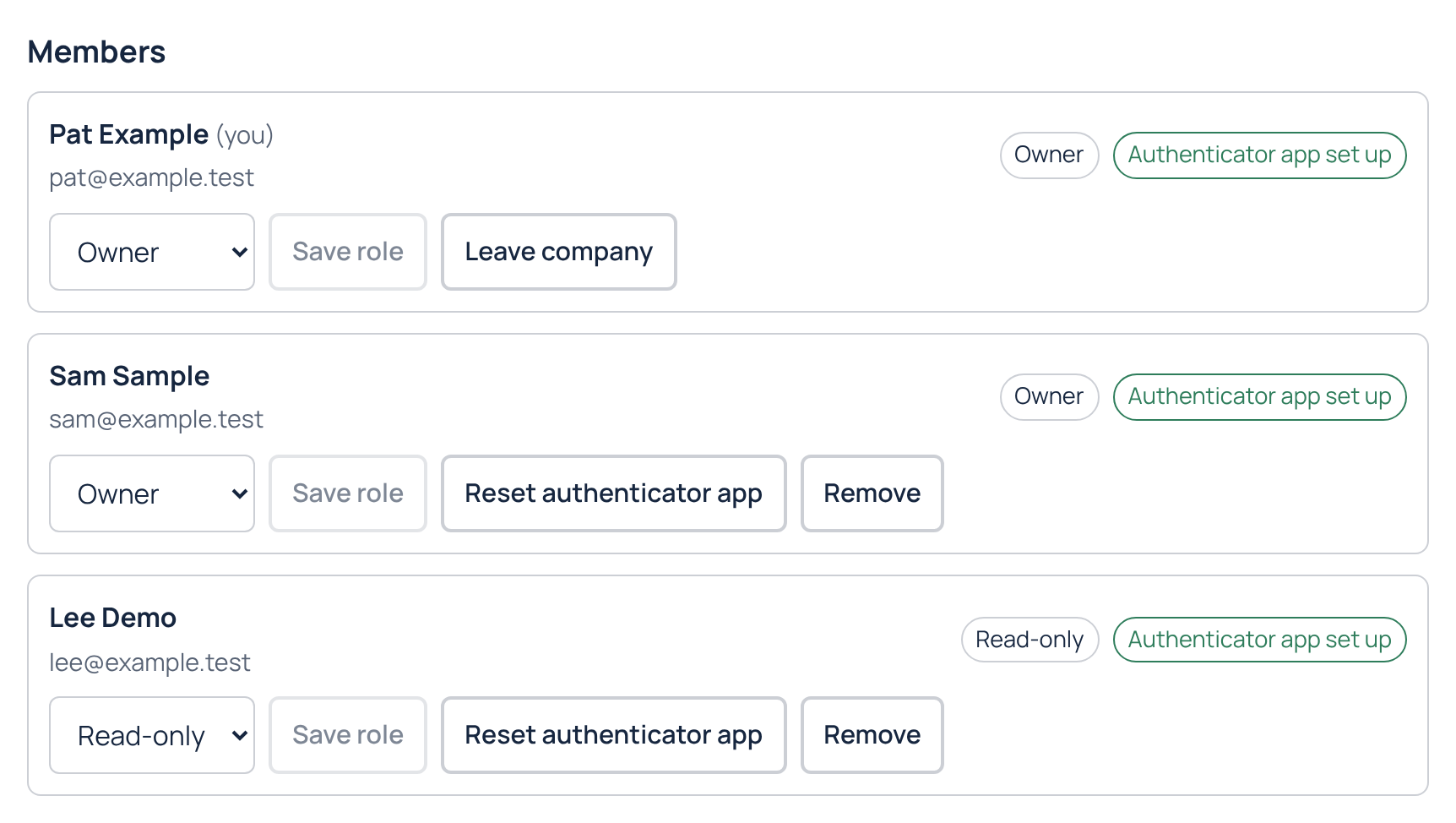
- To change a role, pick the new role under the person's name and click Save role.
- To remove someone, click Remove. They lose access right away.
- To reset someone's authenticator app, for example after they lose their phone, click Reset authenticator app on their row. They're signed out and set up a new one at their next sign-in. See KB-053.
- Your company always needs at least one Owner. To change or remove the last Owner, make someone else an Owner first.
- If you no longer need access yourself, click Leave company on your own row.
Fix your company name
If your company name has a typo, or you want to update it, an Owner can change it. Select Team in the menu, find Company name near the top of the page, type the correct name, and click Save company name. The new name shows across AffirmReady right away.
If you're not an Owner, ask one of your Owners to make the change. Invoices and receipts use the billing name in the billing portal, so an Owner updates that there too. See KB-024. Your company name can't be changed while a payment is past due.
Tips for choosing roles
- Give each person the lowest role that lets them do their part. It's the same idea behind the CMMC Level 1 requirement to limit what each person can do on your systems.
- Have at least two Owners. An Owner can reset another member's authenticator app, so a second Owner can get you back in if you lose your phone. See KB-053.
- Give an outside IT provider Editor or Read-only, not Owner. See KB-055.
- Remove access promptly when someone leaves your company or no longer needs it.
If your last payment didn't go through, team changes are paused until it's resolved (you can still reset someone's authenticator app). See KB-054.
Still need help?
If you have trouble with your team, email support@affirmready.com and include your company name. Our team is available Monday through Friday, 8:00 AM to 5:00 PM Eastern, and replies within one business day.
For CMMC Level 1 readiness purposes only. Not legal advice. Your company is responsible for the accuracy of its self-assessment and affirmation.