How do I set my password and set up my authenticator app?
KB-052 | Applies to: All plans | Last reviewed: October 30, 2026 | Version 1.2
Every AffirmReady account is protected by two things: a password you create and a code from an authenticator app on your phone. This guide walks you through setting up both, and what to do if you forget your password. Setup takes about five minutes.
Step 1: Create your account and password
You create your password when you sign up or accept an invitation from your company's Owner. Your password needs at least 12 characters, with a lowercase letter, an uppercase letter, a number and a symbol, and it can't contain your email address. A checklist under the box shows a green check next to each rule as you meet it, and when both entries match.
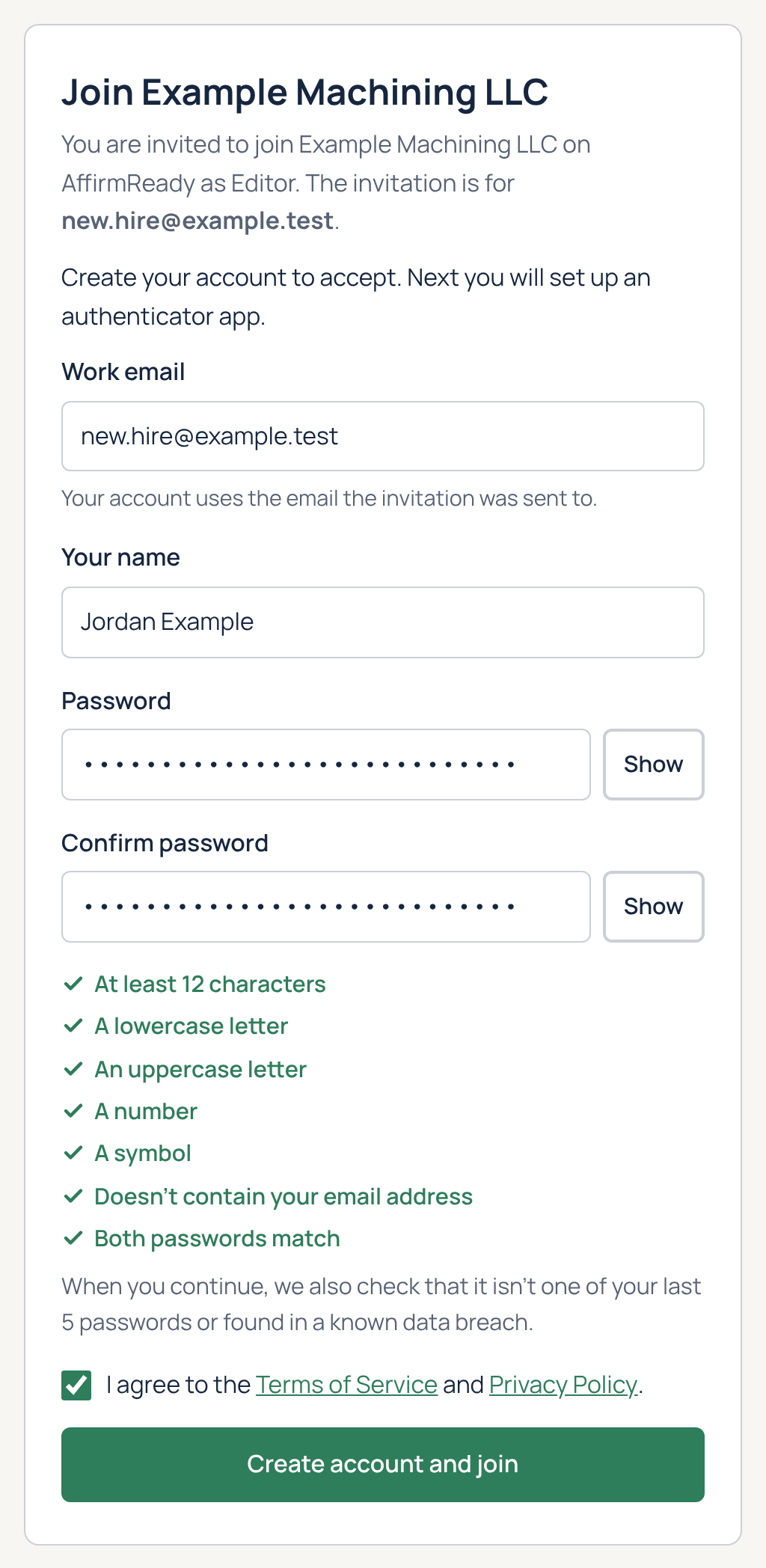
When you continue, we also check two more things. Your password can't be one that has shown up in a known data breach, and when you change it later, it can't match any of your last 5 passwords. If either check fails, you'll see a message asking you to choose a different one. A password manager is the easiest way to create and remember a strong password.
Step 2: Confirm your email
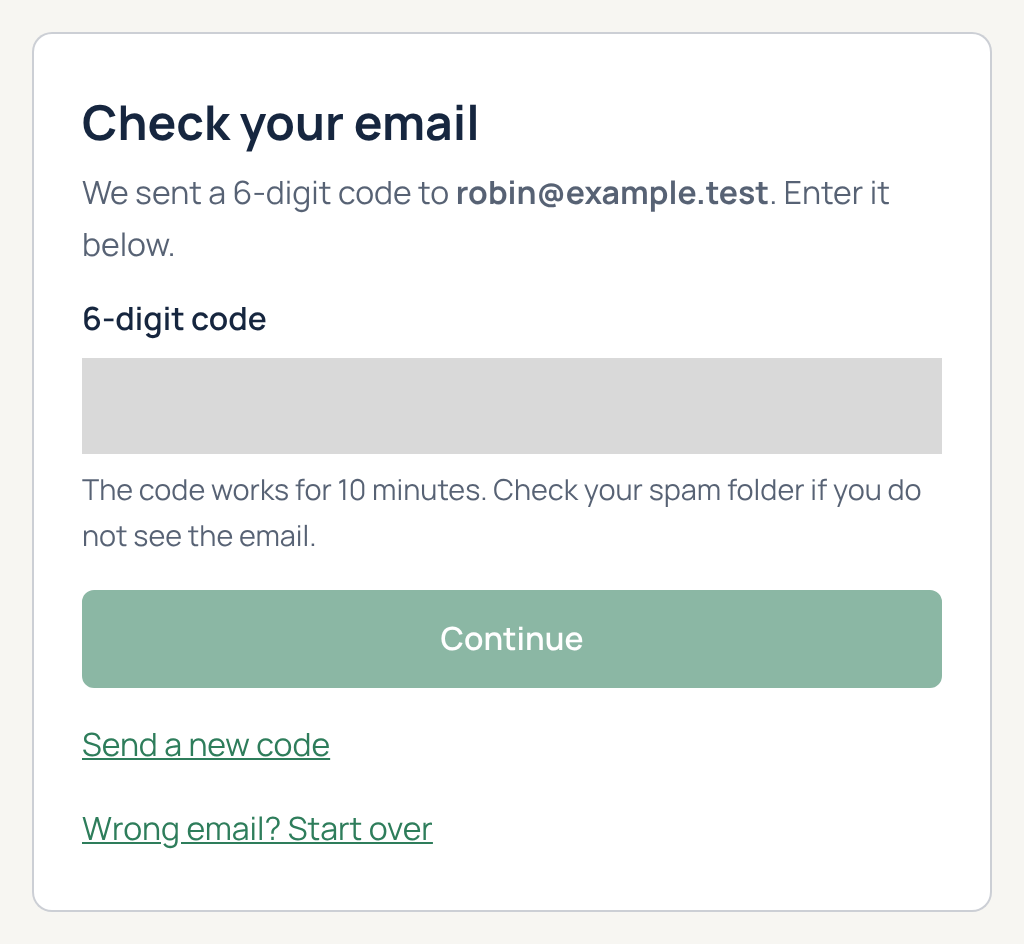
If you sign up on your own, we send a 6-digit code to your work email with the subject "Your AffirmReady code." Enter it on the Check your email screen. If it doesn't arrive, check your spam folder or click Send a new code. If you joined from an invitation, you skip this step, because the invitation link already confirms your email.
Step 3: Set up your authenticator app
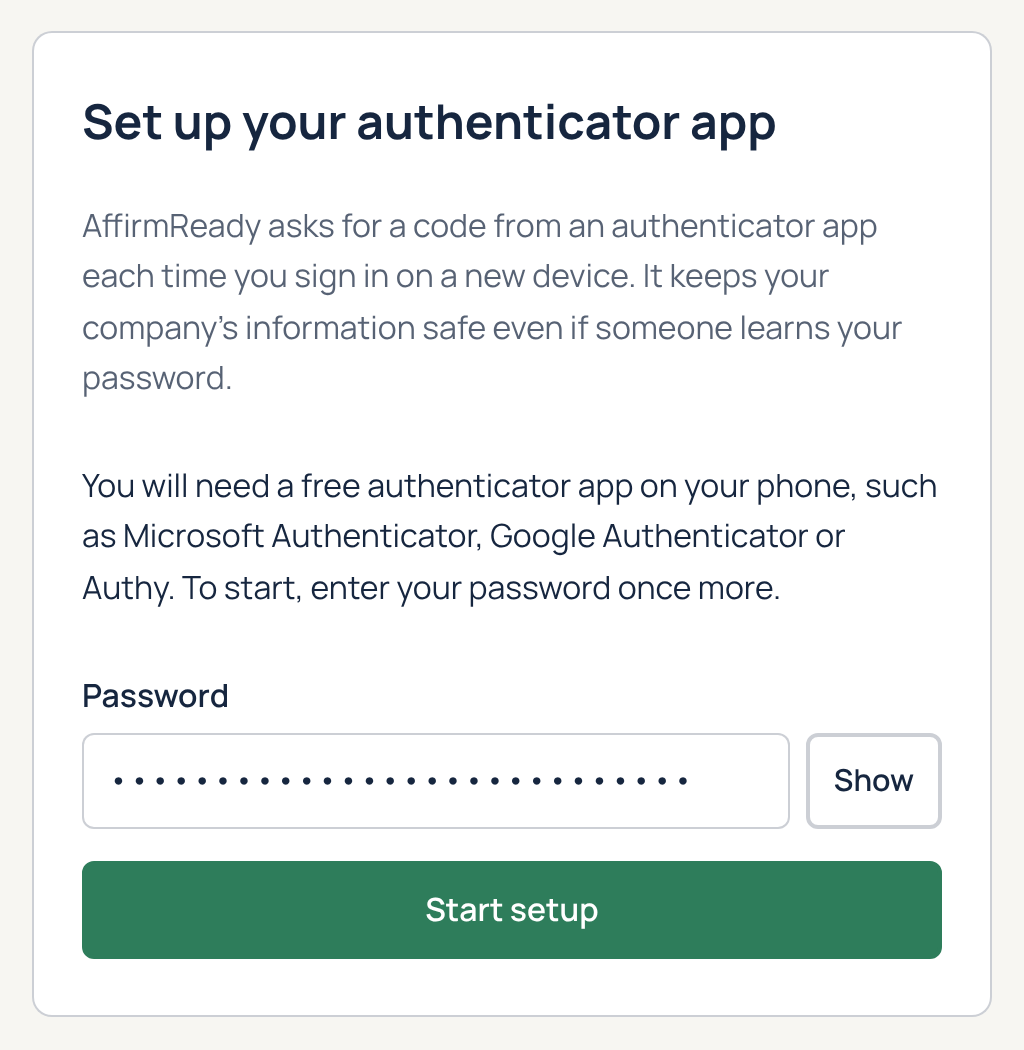
An authenticator app is a free app on your phone that shows a new 6-digit code every 30 seconds. Microsoft Authenticator, Google Authenticator, and Authy all work.
- Install the app on your phone from the App Store or Google Play.
- On the Set up your authenticator app screen, enter your password once more and click Start setup.
- On the Scan this code screen, open your authenticator app, choose to add an account, and scan the QR code. If you can't scan it, type the key shown under the code into the app instead.
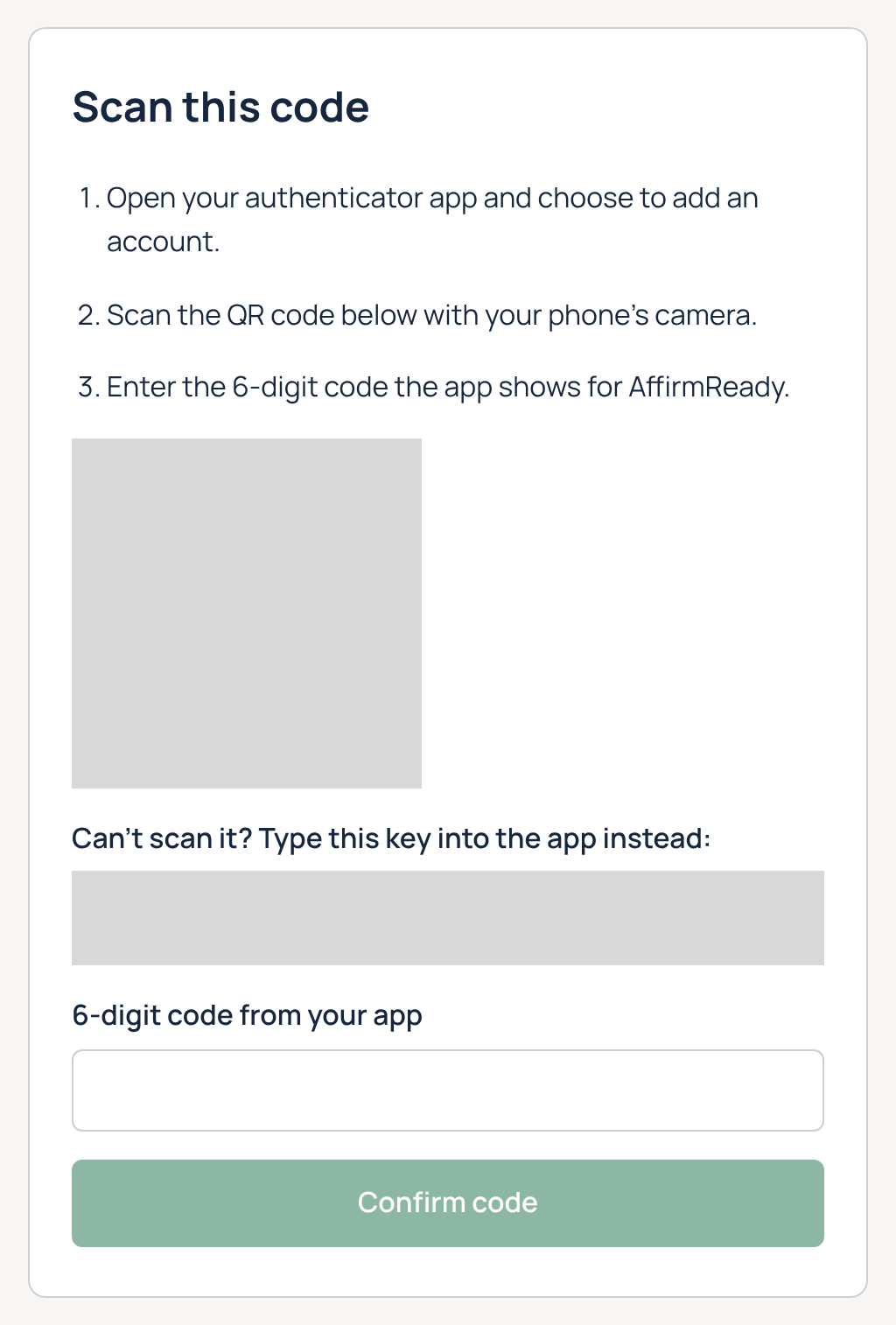
- Enter the 6-digit code the app shows for AffirmReady and click Confirm code.
AffirmReady never sends sign-in codes by text message or email. Your authenticator app is the only place to get them.
Step 4: Save your backup codes
Next you'll see the Save your backup codes screen with 10 backup codes. Each one works once, and they get you back in if you lose your phone. They are shown only this one time, so save them now:
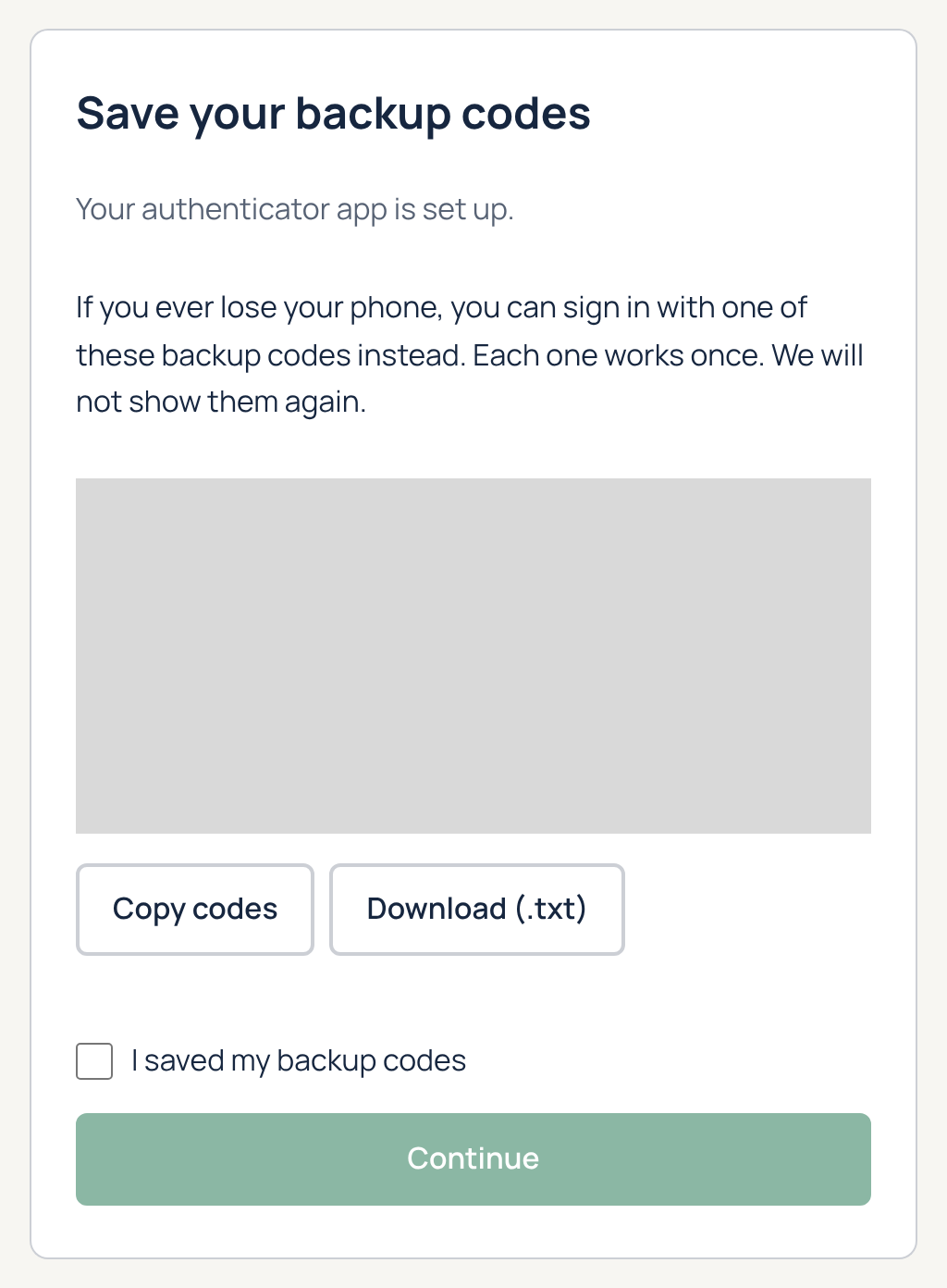
- Click Copy codes or Download (.txt) to save them.
- Keep them somewhere safe, such as a password manager or a locked drawer. Don't email them to yourself.
- Check I saved my backup codes, then click Continue.
Signing in after setup
Each time you sign in, enter your work email and password, then the current code from your authenticator app on the Enter your code screen. On a computer only you use, you can check Trust this device for 30 days so you're asked for a code about once a month on that computer. Don't check it on a shared or public computer.
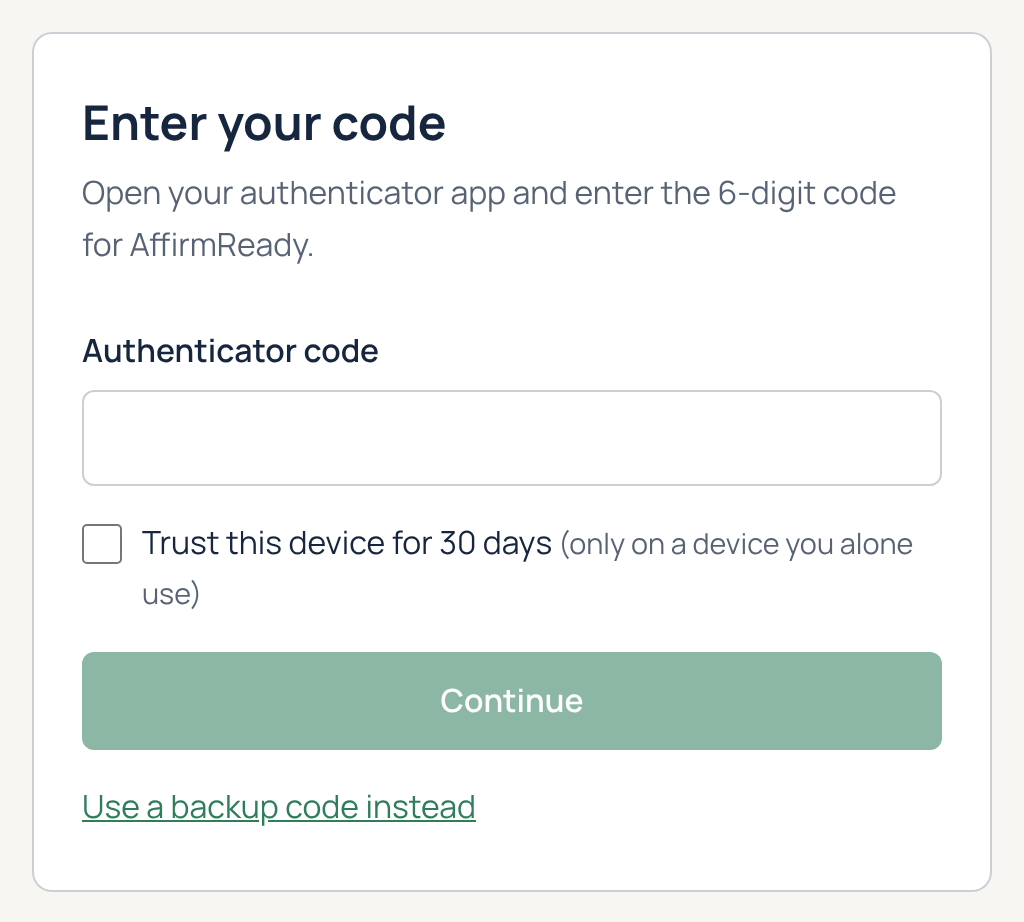
After 5 wrong passwords or 5 wrong codes in a row, your account locks for 15 minutes to keep it safe. Wait, then try again.
Why AffirmReady requires an authenticator app
This is our own security choice for AffirmReady accounts. CMMC Level 1 does not require it for your company's systems, though it is a strong extra step. See KB-033: Evidence guide: Identification and Authentication.
If you forget your password
- On the sign-in page, click Forgot your password?
- Enter your work email and click Send reset link. For your privacy, the screen shows the same message whether or not that email has an account.
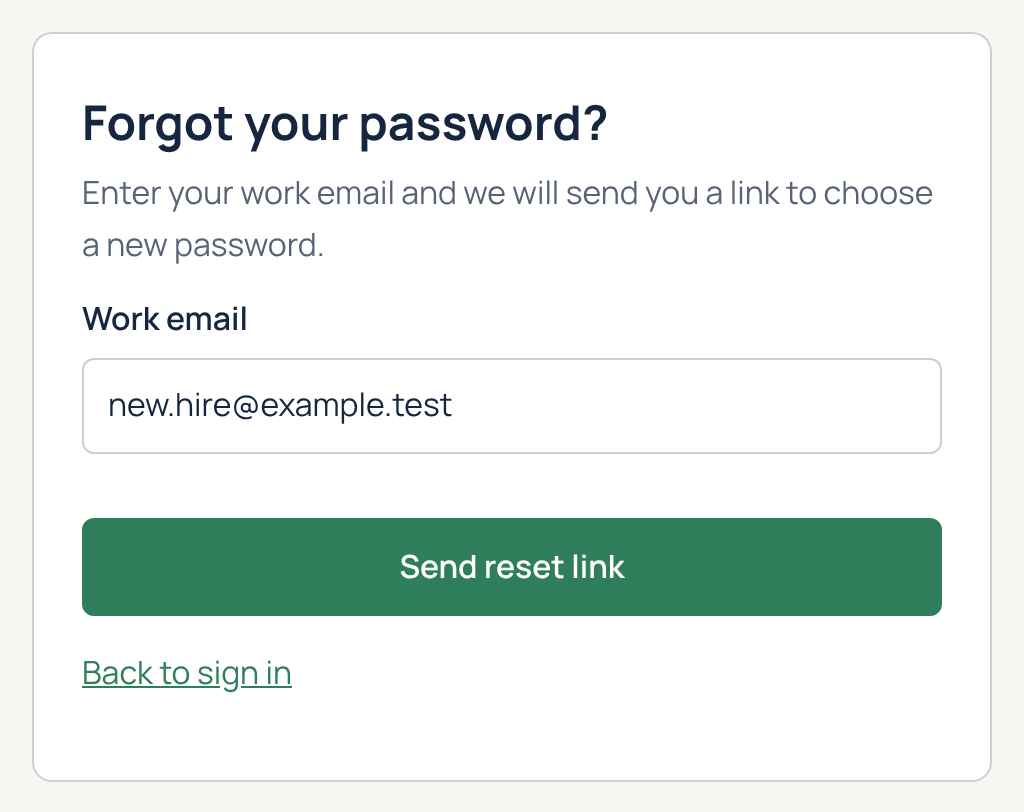
- Open the email from notify.affirmready.com with the subject "Reset your AffirmReady password" and click Choose a new password. The link works once and expires in 60 minutes.
- Enter and confirm your new password, then click Save new password. For your safety, you're signed out on every device.
- Sign in with your new password and your authenticator code as usual.
Don't see the email within a few minutes? Check your spam or junk folder, then try again. Resetting your password does not change your authenticator app or backup codes.
If you lose your phone
Use one of your backup codes to sign in, and ask an Owner to reset your authenticator app. KB-053 walks through every case, including what to do if you're the only Owner.
Managing your sign-in later
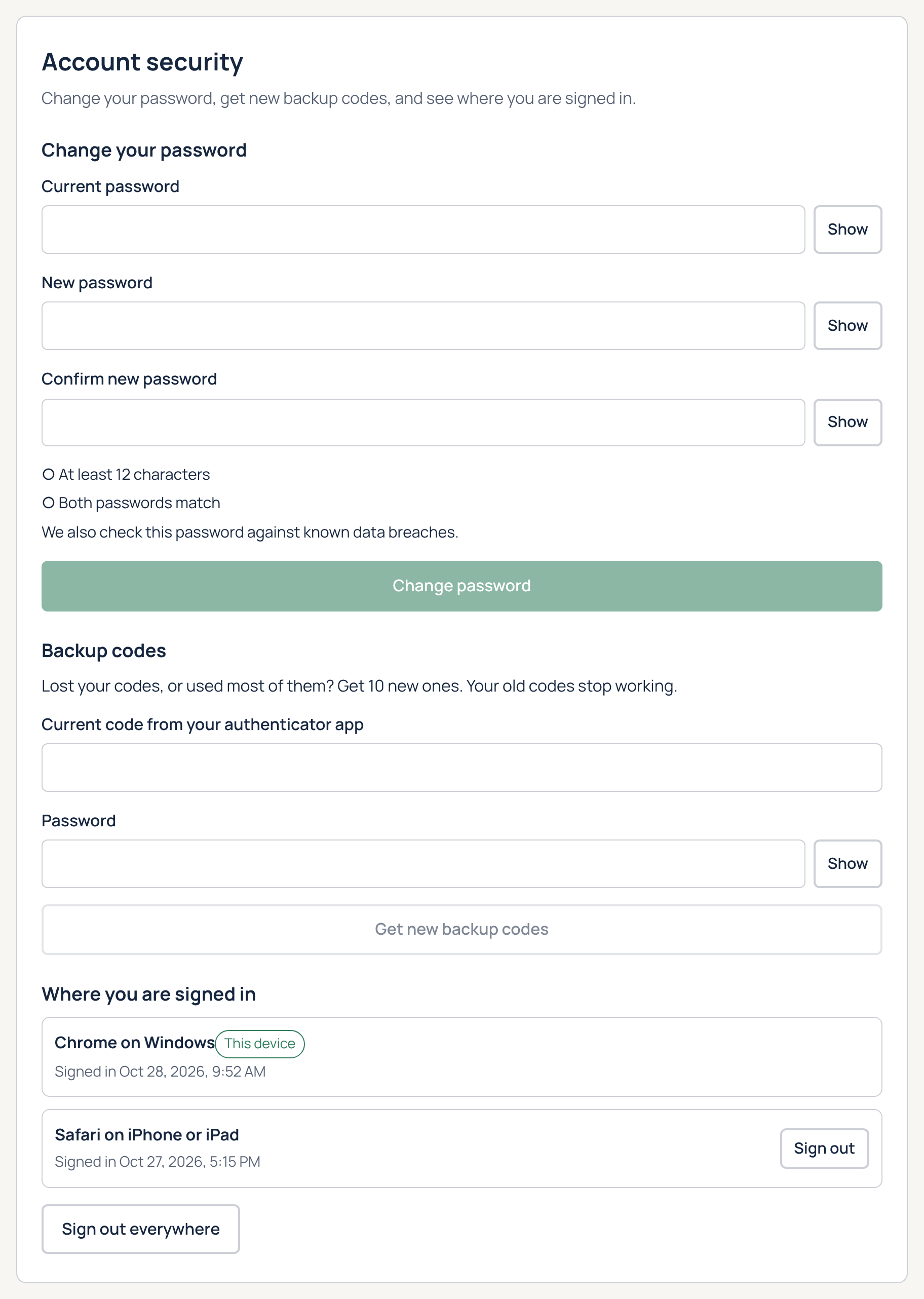
Select Account security in the menu to change your password, get 10 new backup codes (your old ones stop working), or see where you're signed in and sign out of other devices.
Keep it to yourself
Never share your password, authenticator codes, or backup codes with anyone, including AffirmReady. We will never ask for them. If you think someone else got into your account, change your password on the Account security page, click Sign out everywhere, and email support@affirmready.com right away.
Still need help?
Email support@affirmready.com and include your company name and the email address on your AffirmReady account. Our team is available Monday through Friday, 8:00 AM to 5:00 PM Eastern, and replies within one business day.
For CMMC Level 1 readiness purposes only. Not legal advice. Your company is responsible for the accuracy of its self-assessment and affirmation.